 Auto
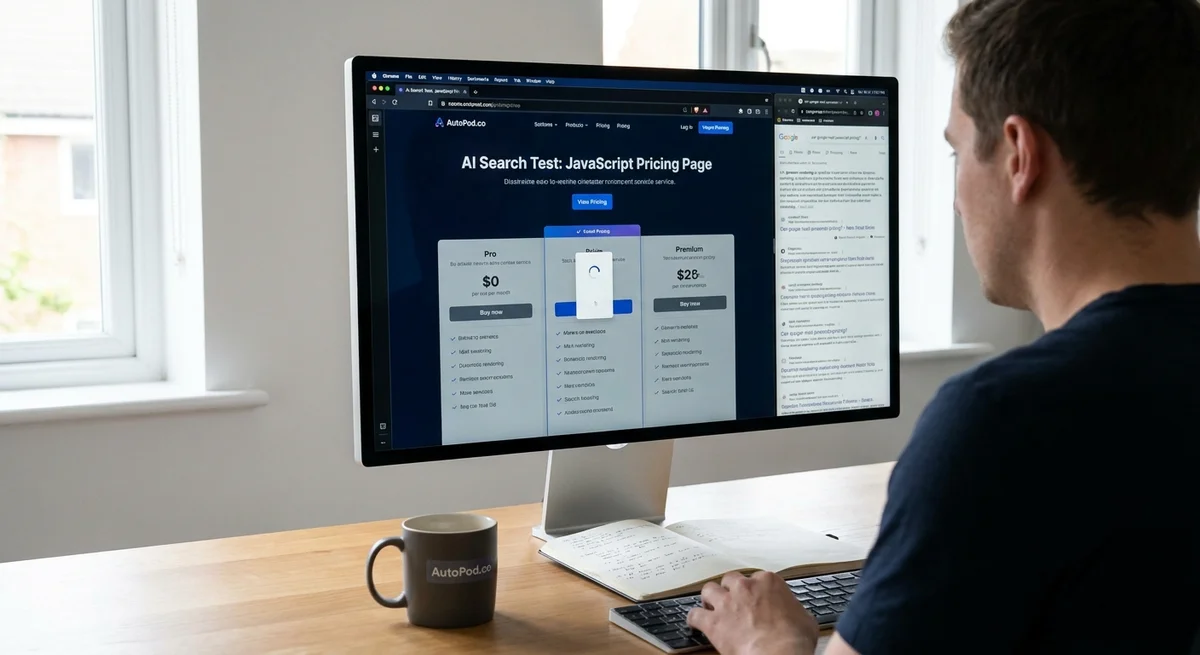
Can Google and AI Search Read a JavaScript-Only Pricing Page?
Google can read JavaScript-only pricing pages, but you should still put plan names, prices, and key limits in the page’s initial HTML. Google’s rendering can be delayed or incomplete, and Google warns that not all bots can run JavaScript.
The risk isn’t that Google can’t run JavaScript
Google uses a modern version of Chromium to render JavaScript. But it processes pages in stages: it first fetches the page, then renders it, then uses the rendered content for indexing. Google says a page can wait in the render queue for seconds or longer. If a script or page resource is blocked—or the script fails to load the pricing details—Google may not see the content you see in your browser. Google’s JavaScript SEO guide and JavaScript troubleshooting guide explain these limits. (developers.google.com)
That creates a business risk: your pricing page can look complete to a visitor but give a crawler an empty shell or incomplete plan details. If a price or usage limit is missing from Google’s rendered version, Google says it can’t index that missing content. Google’s AI features also rely on the same core SEO foundations, including having a page indexed and important content available as text. (developers.google.com)
AI search adds another reason not to depend on one rendering setup. Google says some bots can’t run JavaScript, while OpenAI identifies OAI-SearchBot as the crawler used to surface websites in ChatGPT Search. Don’t assume every search system sees a page the way a customer’s browser does. Google’s JavaScript SEO guide OpenAI’s crawler documentation. (developers.google.com)
Rank the fixes: initial HTML wins
- Best: Put the plan names, prices, billing terms, and key limits in the initial HTML. The page should send those facts before the browser runs JavaScript.
- Then: Use JavaScript for interactions. Let it handle things like a monthly/annual toggle or a signup button.
- Don’t rely on a browser check alone. Seeing the prices on your laptop proves that your browser loaded them. It does not show what Google or another crawler received.
This approach is a small, focused fix for many SaaS sites. You do not need to rebuild every page or add special “AI” markup. Google says its AI features have no extra technical requirements or special schema; its guidance is to follow the same SEO basics and make important content available as text. Google’s AI features guidance. (developers.google.com)
A three-plan page: the risk in dollars and hours
Suppose a three-person SaaS has a 30-page marketing site. Its pricing page gets 120 organic clicks a month, according to Search Console. The page shows three plans only after JavaScript runs:
| Plan | Price | Key limit |
|---|---|---|
| Solo | $19/month | 1 seat, 3 projects |
| Team | $49/month | 5 seats, 20 projects |
| Scale | $99/month | 15 seats, unlimited projects |
These are example prices and limits; use your actual offer. The point is that the page needs to expose those details in text—not just draw them after a script runs. If a crawler misses the $49 Team plan or its 5-seat limit, it may not understand the offer well enough to match the page to searches about that price or limit. That is a discoverability risk, not a claim that a missing price guarantees lost rankings.
Here’s a simple cost check. If one customer who would have chosen the $49 plan doesn’t find or understand it, that is $588 in subscription revenue over 12 months. That is arithmetic, not a forecast. For a sample implementation budget, set aside 30 minutes for the founder to confirm the exact plan copy and two developer hours for the page change and check. At an assumed internal developer cost of $100 an hour, that is $200 in time.
The fix applies to one pricing page, not all 30 pages. For this example, that is a sensible ticket: put the actual offer in the first response, then let JavaScript add the interactive parts.
The one-sentence developer handoff
Please make the server send the plan names, prices, billing terms, and key limits in the page’s first response, so they’re present before the browser runs JavaScript.
Keep the same facts in the visible page and the initial HTML, so customers and crawlers aren’t given conflicting prices.
Check the rendered page in Google Search Console
This week, inspect the pricing URL in Search Console:
- Paste the full pricing-page URL into the Search Console search bar.
- Click Test live URL.
- Click View tested page.
- Open the HTML tab and search for each plan name, price, billing period, and key limit.
Google’s help guide confirms that View tested page shows the rendered HTML; the live test can also show a screenshot of the rendered page. Google’s instructions for viewing rendered source. (support.google.com)
If the screenshot shows the cards but the HTML is missing the text, the page needs the initial-HTML fix. If the rendered HTML contains all three plans and their terms, Google can see those details in that test. This checks Google’s rendering; it does not tell you how every AI crawler will handle the page.
Who should skip publishing exact prices: a SaaS that intentionally sells only custom-priced enterprise plans. Put “Custom pricing” and a clear sales contact path in the initial HTML instead.
**Your next action this week: run URL Inspection on your pricing page and search the rendered HTML for all three plan names, prices, and limits.